
Transfer Photos From iPhone to PC
Simple Transfer is built for the common iPhone-to-PC problem: years of photos, large 4K videos, or HEIC files where the normal Windows import flow keeps failing, timing out, or hiding files.
It also works with Mac, but this guide focuses on the Windows PC path people usually mean when they search for how to transfer photos from iPhone to PC.
You have two ways to use it. The free Desktop app on Windows or Mac is the recommended path for large libraries: it gives you a real destination folder, USB transfer, and reliable batches. The web browser method works without any install if you only need a few files.
Simple Transfer is free to download and test. The free version is meant to confirm that your iPhone, computer, network, and file formats work. Premium removes transfer limits and unlocks advanced features like format conversion and Photo Cleaner.
Recommended setup
Install Simple Transfer on both devices
Use the iPhone or iPad app to open your photo library, then use the free Desktop companion to choose files and save them directly to your Windows PC or Mac.
Free to download and test. Premium removes transfer limits and unlocks advanced transfer features.
What you’ll need
Choose the best transfer method
Transfer photos from iPhone to PC step by step
No-install option: web browser
If you only need a handful of files, you can skip the Desktop install. Open Simple Transfer on the iPhone, switch to the Computer tab, and visit the local URL it shows in any browser on your computer. Files download as a ZIP from the browser.
For full backups, large videos, or USB transfer, use the Desktop app instead. The browser method has ZIP size limits and no destination folder.
For photographers and pros
Before starting a big backup
Related guides

Install Desktop on Windows
Install the free companion app via the Microsoft Store and fix common setup problems.
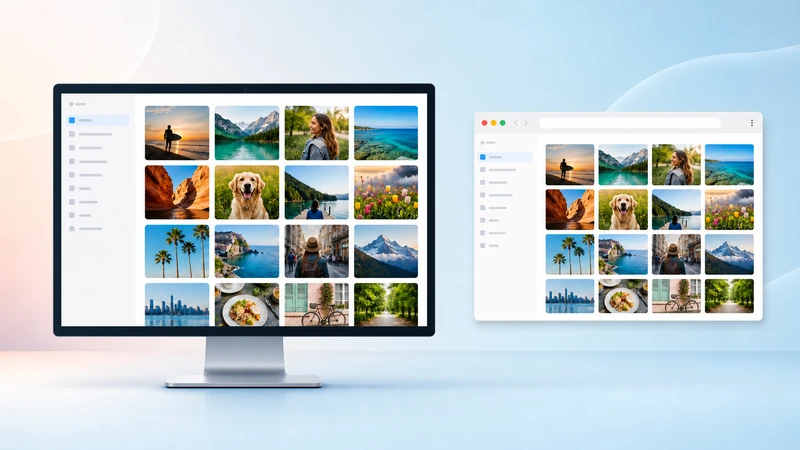
Desktop app or browser
Choose between the Desktop app and no-install browser transfer.
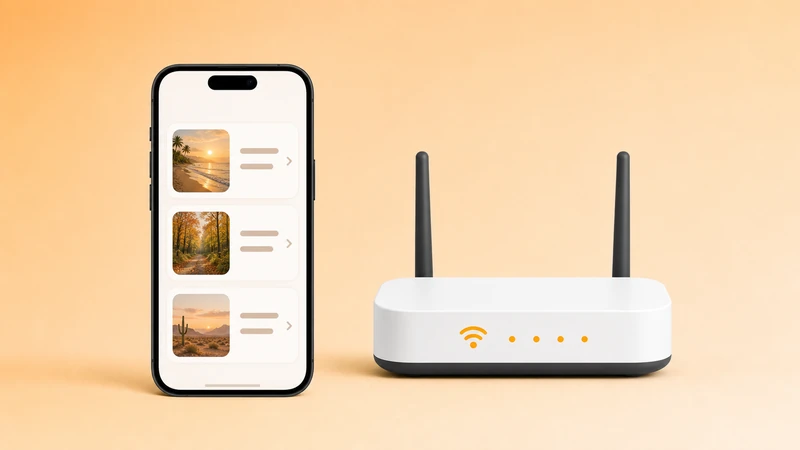
Can't find iPhone or iPad
Fix device discovery, Local Network permission, VPN, firewall, and router issues.
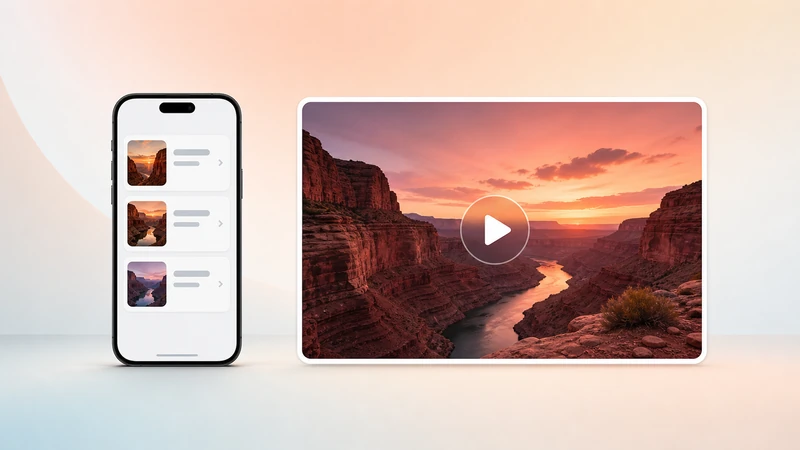
Transfer large videos
Transfer 4K and HEVC videos without broken imports or stalled downloads.