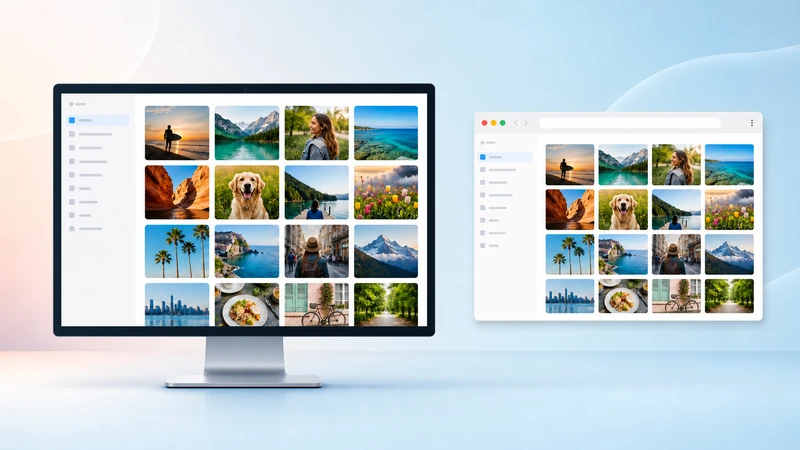
Desktop App vs. Web Browser: Which to Use
Simple Transfer gives you two ways to move files from your iPhone or iPad to a computer. The Desktop app is a free companion you install on Windows or Mac. The web browser method works in any browser on your computer with no software to install.
Both methods use your local WiFi network, so files never leave your home. The right choice depends on how many files you need to move and whether you need USB support, format conversion, or a specific destination folder.
The Desktop app
The Desktop app is the primary way to use Simple Transfer. Install it on Windows or Mac and it automatically finds your iPhone or iPad on the same WiFi network.
You can also connect over USB with the Desktop app, which is useful on work, hotel, or guest networks where WiFi device discovery is blocked. The Desktop app lets you pick any destination folder or external drive, convert HEIC photos to JPG and HEVC videos to MP4, and handle large batches reliably.
The web browser method
Open Simple Transfer on your iPhone, go to the Computer tab, and find the local address shown on screen. Type that address into any browser on your computer and you can browse your iPhone albums and download files directly.
Downloads arrive as a ZIP archive. No install is needed on the computer, which makes this convenient for grabbing a photo on a shared or unfamiliar machine. ZIP size limits and browser constraints make this impractical for full backups or large video files.
Feature comparison
The Desktop app and browser method differ most on USB support, destination folder control, format conversion, and batch size. The browser is convenient for quick one-off grabs. The Desktop app is the full-featured path for most users.
USB transfer: Desktop app only. The browser method requires WiFi.
Destination folder: Desktop app lets you pick any folder or external drive. Browser saves to your default Downloads folder as a ZIP.
Large batches: Desktop app handles full photo libraries. Browser is limited by ZIP size and browser download caps.
Which one should you use?
Use the Desktop app if you are moving more than a few files, transferring large videos, need USB, want to choose a destination folder, or need HEIC-to-JPG or HEVC-to-MP4 conversion. This covers the vast majority of Simple Transfer users.
Use the browser method if you need one or two photos quickly on a computer where you cannot install software, such as a shared work machine or a computer that belongs to someone else.
Get started with the Desktop app
Related guides
iPhone photos to PC
Move photos and videos to a Windows PC or Mac without cloud upload.
Install Desktop on Windows
Install the free companion app via the Microsoft Store and fix common setup problems.
Transfer with USB cable
Use a cable when WiFi is blocked, slow, or unreliable.
Can't find iPhone or iPad
Fix device discovery, Local Network permission, VPN, firewall, and router issues.