Can't Find iPhone or iPad
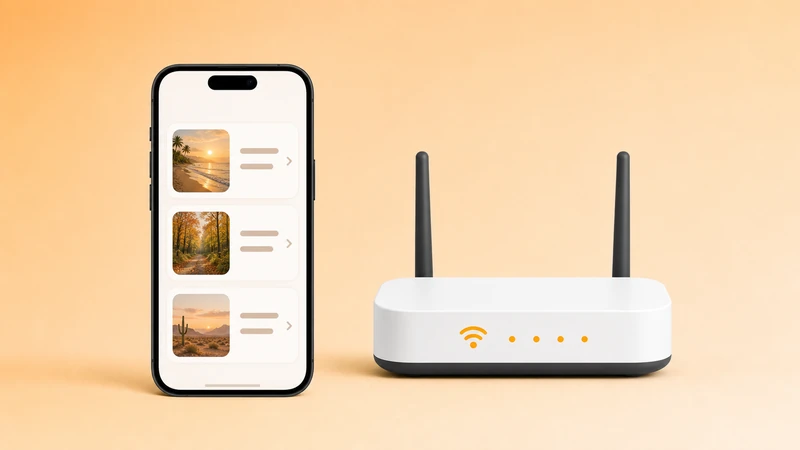
Simple Transfer sends files across your local network so they never leave your home. That privacy-first design is a real benefit, but it means the iPhone and computer must be allowed to see each other on the same network.
Almost every connection problem traces back to one of: guest WiFi, router isolation, VPN, firewall or antivirus, missing Local Network permission, a locked phone, or the iPhone and computer being on different network segments.
Try these first
Start with the network
Check the iPhone or iPad
Check the computer
Still not connecting?
If you have worked through everything above and the iPhone still does not appear, switch to USB transfer. USB avoids almost every network-level discovery problem.
If both methods fail, tap Settings › Help › Report a Bug in the Simple Transfer app. The bug report automatically attaches your device details, which helps narrow down the problem faster than typing them manually.
Related guides
Transfer with USB cable
Use a cable when WiFi is blocked, slow, or unreliable.

Install Desktop on Windows
Install the free companion app via the Microsoft Store and fix common setup problems.

iPhone photos to PC
Move photos and videos to a Windows PC or Mac without cloud upload.

Speed up transfers
Improve speed by checking WiFi quality, file size, iCloud, sleep, and USB fallback.