
Install Simple Transfer Desktop on Windows
The Simple Transfer Desktop app is a free companion to the iOS app. It lets you transfer over WiFi or USB, choose a destination folder, save originals or computer-friendly formats, and skip the browser ZIP limits.
The official place to download it is the Simple Transfer download page. This is also where simpletransfer.app/download redirects when the iOS app sends users to install the companion. Avoid downloading from third-party software sites.
If you already have an older version installed
The newest version of Simple Transfer Desktop is available through the Microsoft Store. If you previously installed version 3.4.2 directly from the website, that is an older build.
Before installing from the Store, uninstall the old version first to avoid any conflicts. Go to Settings → Apps (or Control Panel → Uninstall a program on older Windows), find Simple Transfer Desktop in the list, and uninstall it. Then follow the steps below.
Install via the Microsoft Store
The Microsoft Store is the recommended way to install Simple Transfer on Windows 10 and newer. It is safer to install, always gives you the latest version, and updates automatically. Follow these steps:
If the Microsoft Store does not work
Some PCs cannot use the Microsoft Store. This is common on older Windows versions, school or work computers, or accounts without Store access.
In that case, you can download the older installer directly (v3.4.2). It works on Windows 7 and newer. The Microsoft Store version is more up to date, so use it whenever possible.
Add Simple Transfer to your desktop(optional)
When you install from the Microsoft Store, Windows does not always create a desktop shortcut automatically. Here is the easiest way to add one:
Press Windows Key + R on your keyboard to open the Run dialog. Type shell:AppsFolder and press Enter. A folder opens with all your installed apps listed. Find Simple Transfer, right-click it, and choose Create shortcut. When Windows asks if you want to place it on the desktop, click Yes.
You can also right-click Simple Transfer in your Start menu and choose Pin to taskbar for quick access from the bottom of your screen.
Related guides

iPhone photos to PC
Move photos and videos to a Windows PC or Mac without cloud upload.
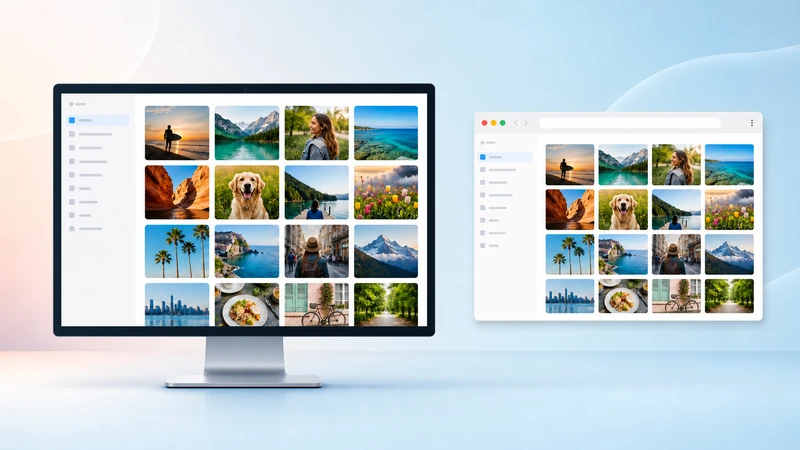
Desktop app or browser
Choose between the Desktop app and no-install browser transfer.
Can't find iPhone or iPad
Fix device discovery, Local Network permission, VPN, firewall, and router issues.
Transfer with USB cable
Use a cable when WiFi is blocked, slow, or unreliable.