Simple Transfer Help Center
Step-by-step guides for setting up Simple Transfer, connecting over WiFi or USB, moving large videos, fixing missing photos, and choosing the right iPhone format.
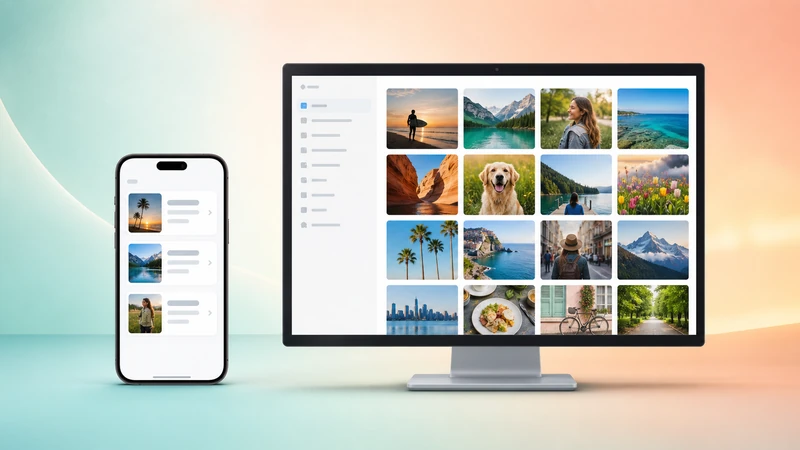
How to Use Simple Transfer
Three steps to transfer photos and videos from iPhone or iPad to Windows or Mac.
Start here
Transfer Photos From iPhone to PC
The main guide for copying full-resolution photos and videos to a Windows PC or Mac over WiFi or USB.
Read guide
FAQ
Most frequently asked questions about Simple Transfer.
View FAQsGuides
Setup, Desktop app, transfer methods, large files, and iPhone-to-iPad workflows.

Transfer iPhone to iPad
Send photos and videos between two iOS devices on the same WiFi network.

Computer to iPhone upload
Send photos and videos from your PC or Mac to iPhone using the browser interface.

Install Desktop on Windows
Install the free companion app via the Microsoft Store and fix common setup problems.
Transfer with USB cable
Use a cable when WiFi is blocked, slow, or unreliable.

Transfer large videos
Transfer 4K and HEVC videos without broken imports or stalled downloads.
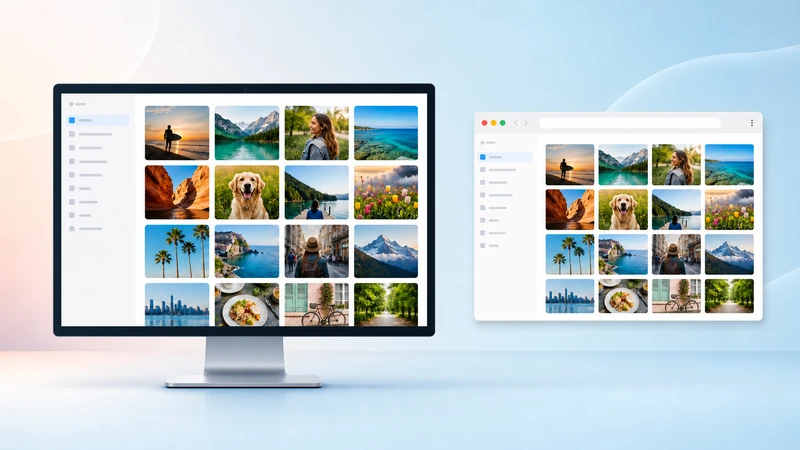
Desktop app or browser
Choose between the Desktop app and no-install browser transfer.
Connection and Transfer Fixes
Troubleshooting guides for connection failures, slow transfers, missing photos, format compatibility, and USB drivers.
Can't find iPhone or iPad
Fix device discovery, Local Network permission, VPN, firewall, and router issues.

Convert HEIC/HEVC files
Know when to keep originals and when to convert to JPG or MP4.

Photos or Videos not Showing
Check Photos access, iCloud Optimized Storage, deleted items, and albums.

Speed up transfers
Improve speed by checking WiFi quality, file size, iCloud, sleep, and USB fallback.

Install Apple USB driver
Install the Windows driver needed when USB transfer cannot see the iPhone.
Still need help?
If a guide didn't solve your problem, email us with your device, OS version, and what you've tried. We read every message.