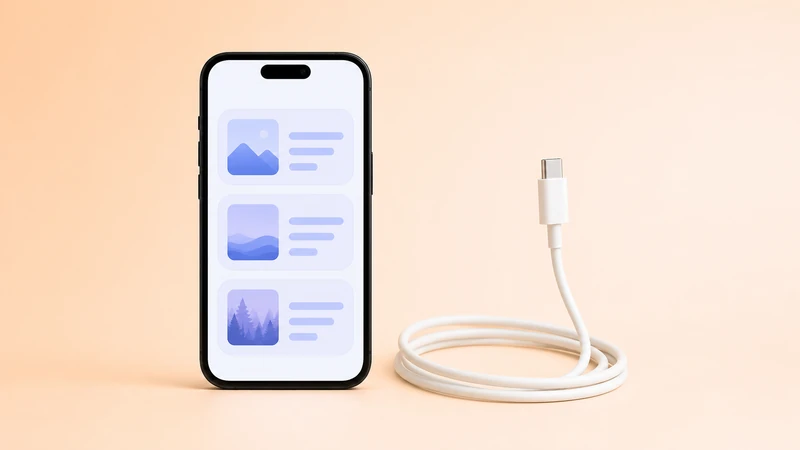
Transfer by USB on Windows or Mac
USB is the right fallback when WiFi discovery is blocked, the home network is unreliable, or you do not want to troubleshoot router and firewall settings. It is also the most predictable choice on managed or corporate computers.
On Windows, the cable alone is not always enough. Your PC may need the correct Apple device drivers. On Mac, use a reliable cable and approve any trust prompt. In all cases, the iPhone must be unlocked and Simple Transfer must stay open on iOS.
USB setup checklist
Windows-specific checks
If Windows cannot see the iPhone over USB, Apple device drivers may be missing or broken. This is common after Windows updates, old iTunes installs, or driver conflicts with Apple Devices for Windows.
Quick test: see if the iPhone appears in File Explorer at all. If Windows itself cannot see it, fix the Apple driver path before troubleshooting Simple Transfer.
Mac-specific checks
Speed expectations
Older Lightning iPhones can be limited to USB 2 speeds even on a modern computer. USB-C iPhones (iPhone 15 and newer) can be much faster. USB is not always dramatically faster than WiFi, but it is usually more stable.
For very large transfers, reliability matters more than peak speed. Use a destination drive with enough free space and stop the computer from sleeping mid-transfer.
If USB keeps disconnecting
Related guides
Can't find iPhone or iPad
Fix device discovery, Local Network permission, VPN, firewall, and router issues.

Speed up transfers
Improve speed by checking WiFi quality, file size, iCloud, sleep, and USB fallback.

Install Desktop on Windows
Install the free companion app via the Microsoft Store and fix common setup problems.

iPhone photos to PC
Move photos and videos to a Windows PC or Mac without cloud upload.