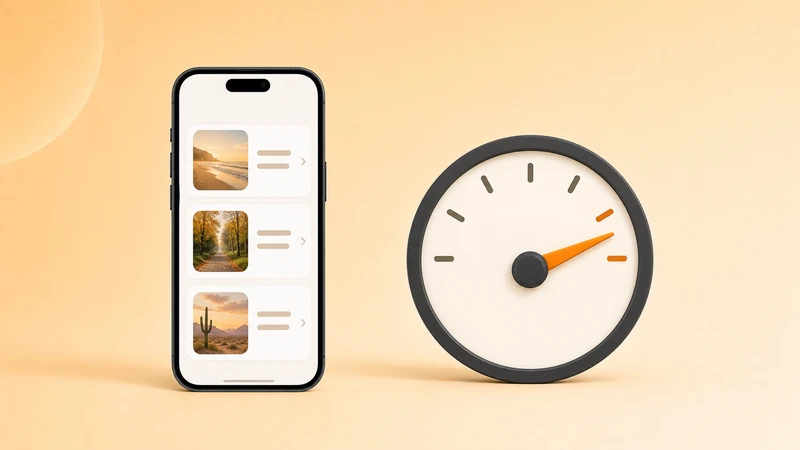
Slow Transfer Speed
This guide is for slow transfers after the iPhone and computer can already see each other. If the computer cannot find the iPhone at all, start with the Can't Find iPhone or iPad guide.
Speed depends on WiFi quality, distance from the router, file size, video format, other network traffic, whether originals are already on the device (vs. iCloud), and whether the phone or computer goes to sleep.
Improve WiFi quality
Reduce network load
Handle large files carefully
Large 4K videos take longer than photos. Start with a small batch to confirm speed, then scale up. If iCloud Photos with Optimized Storage is on, originals may live in iCloud and the iPhone has to re-download them before sending. That is often the real source of slow transfers.
If a single photo or video opens slowly in Photos, the original is not yet on-device. Open it in Photos first, wait until it loads, then re-try the transfer.
Keep devices awake
Related guides
Can't find iPhone or iPad
Fix device discovery, Local Network permission, VPN, firewall, and router issues.
Transfer with USB cable
Use a cable when WiFi is blocked, slow, or unreliable.
Transfer large videos
Transfer 4K and HEVC videos without broken imports or stalled downloads.

iPhone photos to PC
Move photos and videos to a Windows PC or Mac without cloud upload.